FireStick Troubleshooting: Fix Common Problems Fast
Running into issues with your Fire TV Stick? This comprehensive troubleshooting guide covers the most common problems and their solutions.
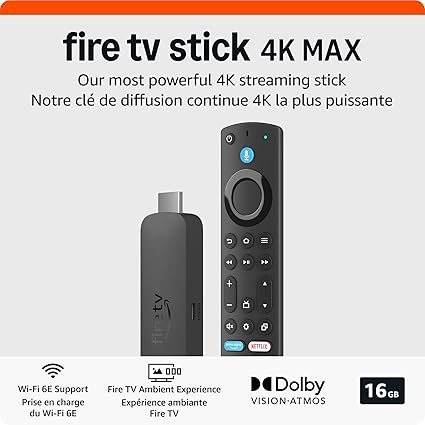
Your Amazon Fire TV Stick is an amazing streaming device, but like any technology, it can occasionally run into issues. This guide will help you quickly diagnose and fix the most common FireStick problems.
Problem #1: Buffering and Slow Streaming
Nothing kills the mood faster than constant buffering during your favorite show.
Causes:
- Slow or unstable internet connection
- Too many devices on your network
- FireStick overheating
- Cache buildup
Solutions:
- Check your internet speed: You need at least 3 Mbps for SD, 5 Mbps for HD, and 25 Mbps for 4K. Run a speed test on your phone.
- Restart your router: Unplug for 30 seconds, then plug back in.
- Move closer to Wi-Fi: If possible, move your router closer or use a Wi-Fi extender.
- Clear cache:
- Go to Settings → Applications → Manage Installed Applications
- Select the problematic app
- Click "Clear cache" and "Clear data"
- Use 5GHz Wi-Fi: If your router supports dual-band, connect to 5GHz for faster speeds.
- Upgrade your FireStick: Consider the Fire TV Stick 4K Max with Wi-Fi 6E for superior performance.
Problem #2: Remote Not Working
Remote issues are one of the most frustrating FireStick problems.
Quick Fixes:
- Check batteries: Replace with fresh AAA batteries
- Restart remote pairing:
- Hold the Home button for 10 seconds
- Wait for the remote to pair automatically
- Restart FireStick: Unplug power cable, wait 60 seconds, plug back in
- Check for obstructions: Remove anything blocking the line of sight between remote and FireStick
- Unpair and re-pair:
- Go to Settings → Controllers & Bluetooth Devices → Amazon Fire TV Remotes
- Select your remote and choose "Forget Device"
- Hold Home button for 10 seconds to re-pair
Need a Replacement?
If your remote is damaged, consider:
- Replacement Remote Control – Budget option at ~$11.99 CAD
- Alexa Voice Remote Pro – Premium with backlit buttons and remote finder at ~$37.99 CAD
Problem #3: Apps Crashing or Not Loading
Apps freezing or crashing can usually be fixed with a few simple steps.
Solutions:
- Force Stop the App:
- Settings → Applications → Manage Installed Applications
- Select the app → Force Stop
- Clear App Data:
- Same menu as above → Clear cache, then Clear data
- Note: You'll need to log back into the app
- Update the App:
- Go to the app in the Appstore
- If "Update" appears, select it
- Reinstall the App:
- Uninstall the problematic app
- Restart your FireStick
- Reinstall from the Appstore
Problem #4: No Sound or Audio Issues
Checklist:
- Check TV volume: Ensure your TV isn't muted
- Verify HDMI connection: Ensure cable is fully inserted
- Try a different HDMI port: Some TV ports don't support audio return
- Adjust FireStick audio settings:
- Settings → Display & Sounds → Audio Output
- Try switching between Stereo and Dolby Digital
- Restart devices: Turn off TV and unplug FireStick for 60 seconds
Problem #5: Wi-Fi Connection Keeps Dropping
Fixes:
- Check Wi-Fi signal strength:
- Settings → Network
- Look for signal bars next to your network
- Use HDMI extender: The included extender can improve Wi-Fi reception
- Change Wi-Fi channel: Log into your router and switch to a less congested channel
- Forget and reconnect:
- Settings → Network → Your Network
- Select "Forget" then reconnect
- Update router firmware: Check manufacturer's website for updates
Problem #6: FireStick Overheating
Overheating can cause performance issues and crashes.
Prevention:
- Don't stack devices on top of your TV or receiver
- Use the HDMI extender for better airflow
- Keep FireStick away from heat sources
- Ensure adequate ventilation around the device
- Turn off FireStick when not in use (hold Home → Sleep)
Problem #7: "No Signal" or Blank Screen
Troubleshooting Steps:
- Verify HDMI input: Make sure TV is set to correct HDMI source
- Check power: Ensure FireStick light is on
- Try different HDMI port: Test another port on your TV
- Test HDMI cable: If using extender, remove it and plug directly
- Check resolution:
- Hold Home button for 10 seconds
- This resets display to default 720p
Problem #8: FireStick Running Slow
Speed It Up:
- Close background apps: Hold Home → Apps → Select app → Force Stop
- Clear system cache:
- Settings → Applications → Manage Installed Applications
- Clear cache for multiple apps
- Uninstall unused apps: Free up storage space
- Disable data monitoring:
- Settings → Preferences → Data Monitoring → Off
- Turn off notifications: Settings → Preferences → Notification Settings
- Factory reset: Last resort – backs up nothing, so note your app logins first
- Settings → My Fire TV → Reset to Factory Defaults
Problem #9: Can't Install or Update Apps
Solutions:
- Check storage:
- Settings → My Fire TV → About → Storage
- If full, delete unused apps
- Restart FireStick: Often clears temporary glitches
- Check for system updates:
- Settings → My Fire TV → About → Check for Updates
- Clear Appstore cache:
- Settings → Applications → Amazon Appstore → Clear cache
Problem #10: Screen Mirroring Not Working
Fixes:
- Enable mirroring on FireStick:
- Hold Home button → Mirroring
- FireStick enters discovery mode
- Ensure devices on same Wi-Fi: Both phone/laptop and FireStick need same network
- Update both devices: Check for software updates on phone and FireStick
- Use third-party apps: Try AirScreen app for iOS/Mac mirroring
When to Contact Support
If none of these solutions work, you may have a hardware issue. Contact Amazon Support if:
- FireStick won't power on at all
- Device is still under warranty
- You see error codes you can't resolve
- Physical damage is visible
Consider an Upgrade
If your FireStick is several years old and constantly having issues, it might be time for an upgrade. Newer models offer:
- Faster processors
- Better Wi-Fi connectivity (Wi-Fi 6/6E)
- More RAM for smoother performance
- Enhanced voice controls
Top Picks for 2026:
- Fire TV Stick 4K Select – Great value 4K upgrade at ~$39.99 CAD
- Fire TV Stick 4K Max – Best performance with Wi-Fi 6E at ~$69.99 CAD
- Fire TV Cube – Premium hands-free experience at ~$169.99 CAD
Prevention Tips
Keep your FireStick running smoothly with these habits:
- Restart weekly to clear memory
- Update apps and system software regularly
- Clear cache monthly
- Uninstall apps you don't use
- Use a surge protector
- Keep ventilation clear
Final Thoughts
Most FireStick problems can be solved with simple troubleshooting steps. Before assuming you need a replacement, try the solutions in this guide. Nine times out of ten, you'll have your device working perfectly again in just a few minutes.
If you continue experiencing issues, check out our other guides or consider upgrading to a newer model with improved hardware and features.
FireStick Masters Team
Expert reviews, guides, and tips for Amazon Fire TV devices.